


.svg)

















Beyond AI
How AI helps you publish videos on YouTube

This article is a supplement to the video published on the Beyond AI channel, which demonstrates how to install a local version of an AI Chat on your computer without the need for an internet connection. To learn more, visit the Beyond AI channel and discover other interesting content related to artificial intelligence.
Watch this material on YouTube:
Hi, I'm Michał from Beyond AI. Today, I will show you how to install an AI Chat locally on your computer that will work without any internet access.
I have checked all the available options and will show you the simplest one, which requires neither programming skills nor specialized technical knowledge.
When we use services like ChatGPT from OpenAI or Gemini from Google, we must be connected to the internet. Naturally, all our communication—every document we upload and every photo—is sent to OpenAI or Google servers.
If you do not have a paid account and haven't disabled the training options, the data you send may be used to train new versions of their models. This is not always a desirable situation. We don't always want our work to be sent away and potentially become part of a new model that might someday be subject to a leak.
If these are your concerns, or if you simply want to have access to Chat in situations where you have no internet (for example, while flying on a plane or dealing with a weak, unreliable connection), we will show you step-by-step what needs to be done to run a local version of an LLM.
To do this, you primarily need a computer with a dedicated graphics card or a Mac with an M1 processor or better. While it is possible on other computers, the performance will be too slow for any reasonable daily work. However, if you have a computer with a decent GPU or a Mac with M1/better, you can configure these models so that the speed is sufficient for everyday tasks and genuinely helpful.
To fully utilize the available possibilities, we will need to install two applications:
The primary advantage is that nothing is sent to the internet. Everything happens locally on your computer, ensuring full security and privacy for your data processing.


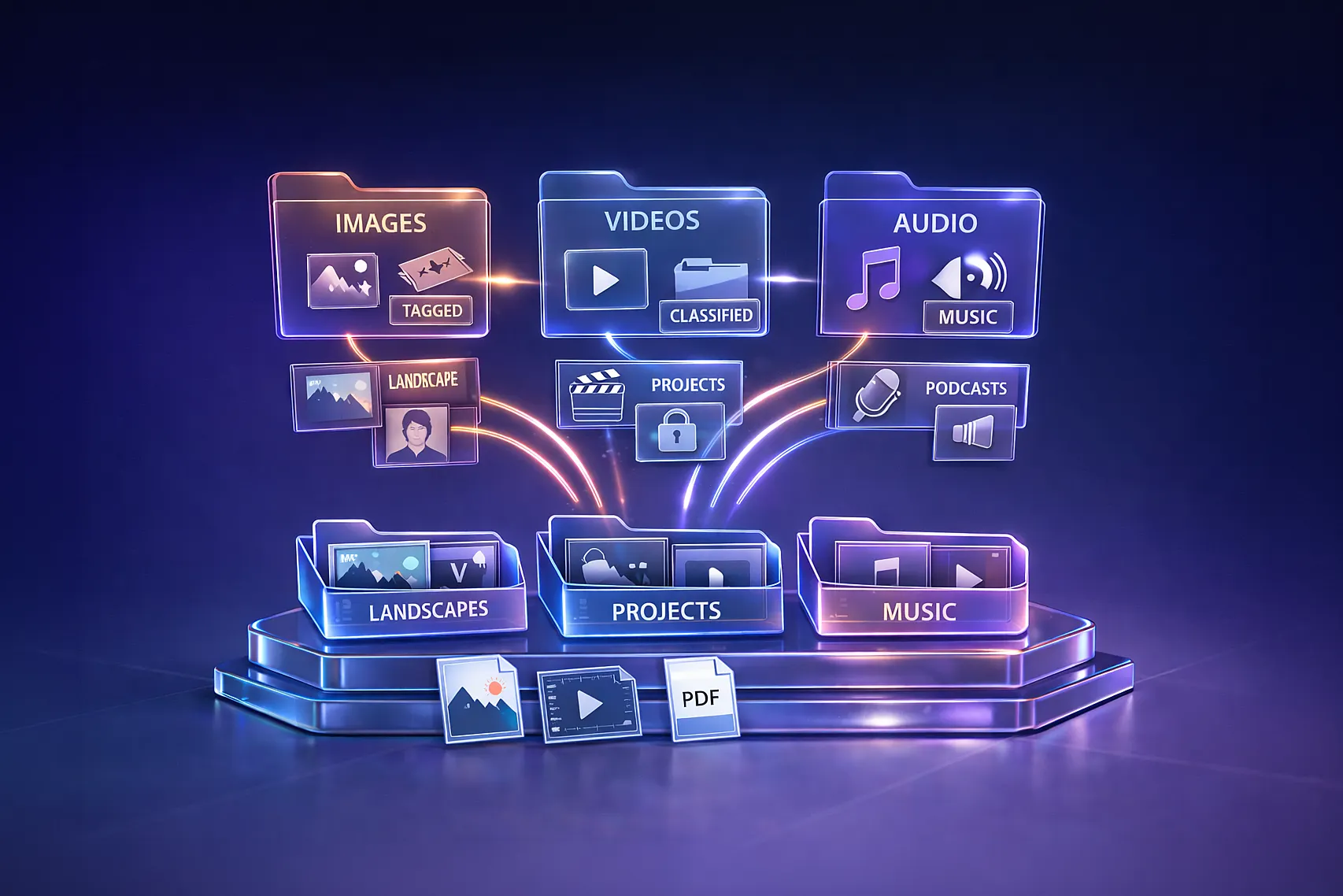
This program allows us to use an AI chat with the ability to operate on files.


With this solution, you can locally install and run any model, add documents, websites, or YouTube videos, and then search and answer questions based on that data in offline mode. The instance works fast enough, although searching may take longer with a high volume of documents.
This is particularly useful when you lack internet access or do not want to send documents to external servers. I recommend testing different models—some are dedicated to specific tasks like coding or the Polish language, while others like Mistral are good general-purpose models.
Thank you for your attention, and I invite you to watch or read our other episodes!
—
No, after installing and configuring tools like LM Studio and AnythingLLM, you can use AI Chat without any internet connection.
A computer with a dedicated graphics card or a Mac with an M1 processor or newer is recommended.
Yes, using AnythingLLM, you can manage local documents and use AI models to process them.
Yes, all operations take place locally on your computer, ensuring total data security and privacy.
Subscribe to the Beyond AI channel, your guide to the dynamic world of artificial intelligence. You will find more practical tips, interesting facts, and the latest news related to AI. See you there!


Learn how artificial intelligence can help you unlock YouTube’s full potential and make video publishing easier and more efficient.

Discover how AI can help you pick the perfect present — from personalised recommendations to analysing YouTube reviews and saving time with intelligent suggestions.


